
Garage is a lightweight S3 compatible object storage. It is a self-hosted, open-source, and easy-to-deploy solution for storing and managing large amounts of data. It is written in Rust and is available as a Docker image.
I used to look into an S3 storage solution for my home lab. Something really simple, I don't need replication, high availability, or any of the other features that come with it. I just needed a simple, easy-to-use, and easy-to-manage solution. Garage was a good candidate for me.
For information, Minio has been declared as maintenance mode and will not receive any new features or updates. The other interesting solution is RustFS, but minimum required resources looks to be higher than Garage.
Garage Installation
The installation I chose to use is Kubernetes. Unfortunatelly, the Helm Chart maturity is not perfect yet, mostly if you want to use it with the webui. So I had to manually bypass some configuration to get it to work.
Prepare configuration
First of all, we're not going to use the configuration inside the chart, we're going to use a custom ConfigMap instead:
The important things here are:
replication_factor: set to 1 if you don't want replicationkubernetes_discovery: set to true to use kubernetes discoveryrpc_secretandadmin_token: generate a random token withopenssl rand -hex 32for each of them
You can find the full configuration here.
The other thing to deploy is a service for the admin interface because the chart doesn't provide it for some reasons:
Quote
NOTE: The admin API is excluded for now as it is not consistent across nodes
In our case, as there is a single instance, there won't be any issues, so we'll add this service:
Now we can deploy those resources (in the same namespace where the garage chart will be deployed):
Deploy Garage chart
Unfortunately the chart is only available on the official Garage repository. So we'll need to clone the repo and then being able to use it:
You can create an override file to override the default valuees. Here is the one I used:
persistence.meta.size: the size of the metadata volume. Start with small size and grow thepvcsize when needed.persistence.data.size: the size of the data volumegarage.rpcSecret: the RPC secret from the configmap abovegarage.existingConfigMap: the name of the configmap we deployed above
Now we can deploy:
Note
CRD will be deployed by the chart, but you can use garage.kubernetesSkipCrd: true to skip it. But as it's more convenient, we'll keep them like this.
Garage Web UI
We're almost ready to use Garage but we will finish with the Garage Web UI installation. Helm chart is not ready yet but a PR is in progress.
Let's clone the PR:
And prepare an override file:
Here is what you have to update:
garageConfig.adminApiKey: the admin token from the Garage admin config (in the[admin]section)auth.userPassHash: the user password hash (usinghtpasswd -nbBC 10 "user" "password")config.name: the name of the configmap we deployed for garage
I personnaly use Gateway API to expose the web ui, but you can use Ingress or NodePort if you prefer. Now you can look at the web ui at http://garage.mydomain.com:
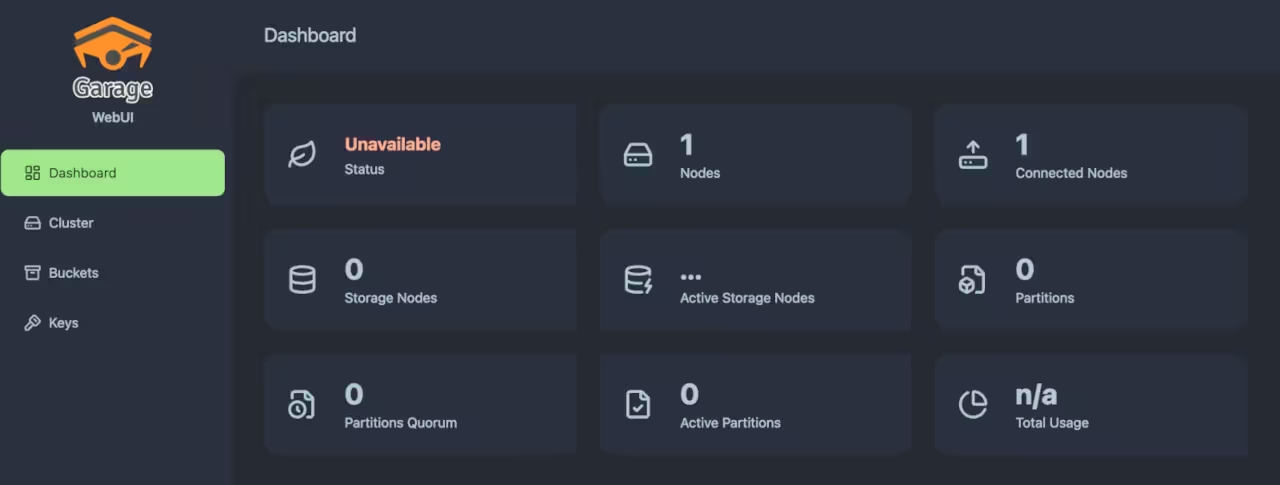
You should see "Unavailable" status, and one connected node. This is normal, as we only have one node.
Create a partition
Now go into the "Cluster" tab, you should see the node ID in "Active" status. Now we can assign a new partition:
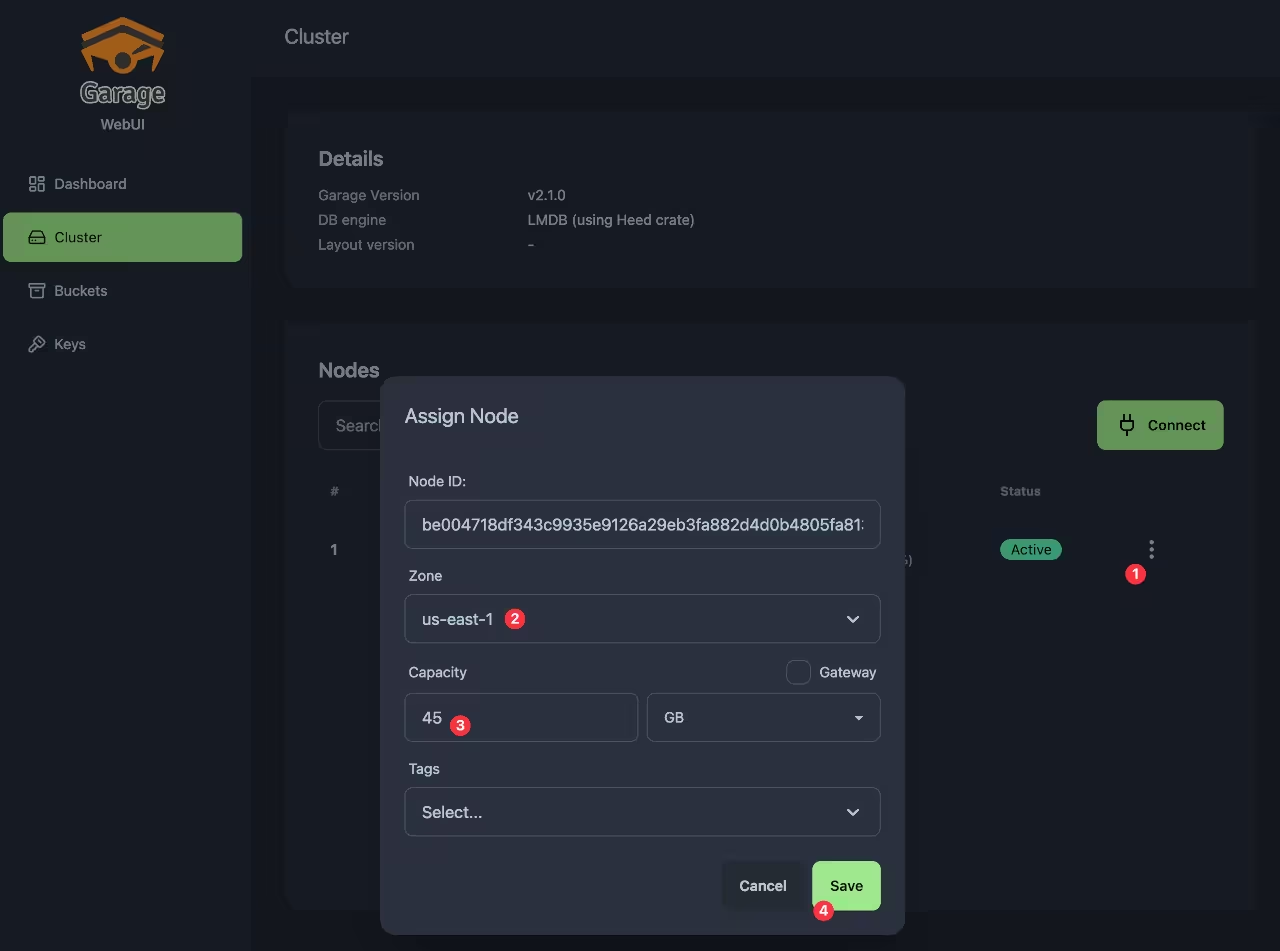
- Click on "Assign"
- Set the Zone
- Set the partition capacity, do not got beyong the data disk capacity you've set
- Click on "Save"
- Click on "Apply"
In the end, you should see a summary like:
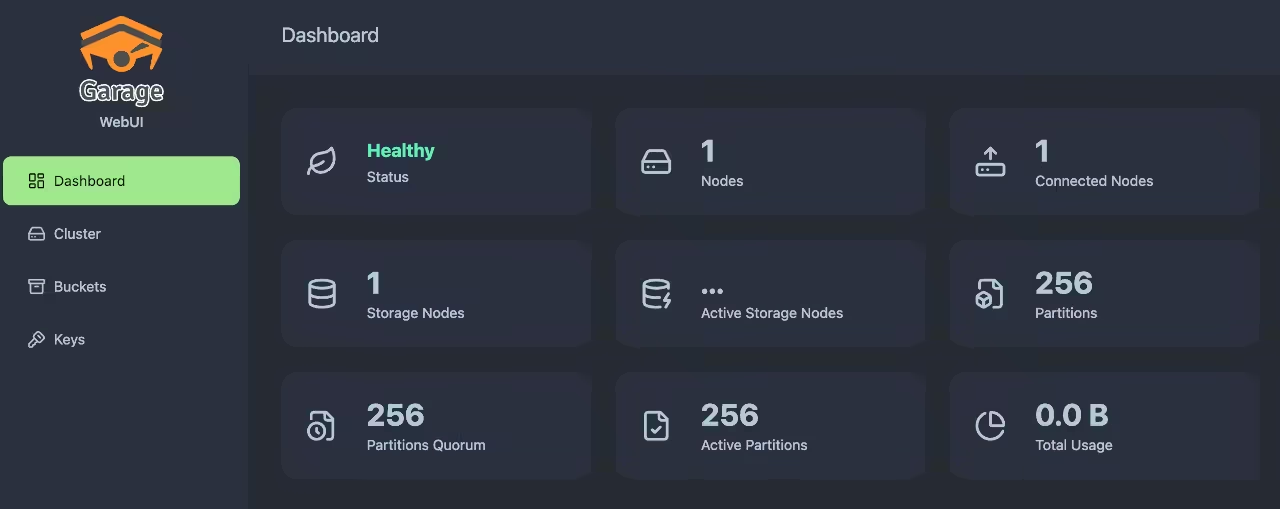
If you look into the dashboard, you should see "Healthy" status:
Create a bucket
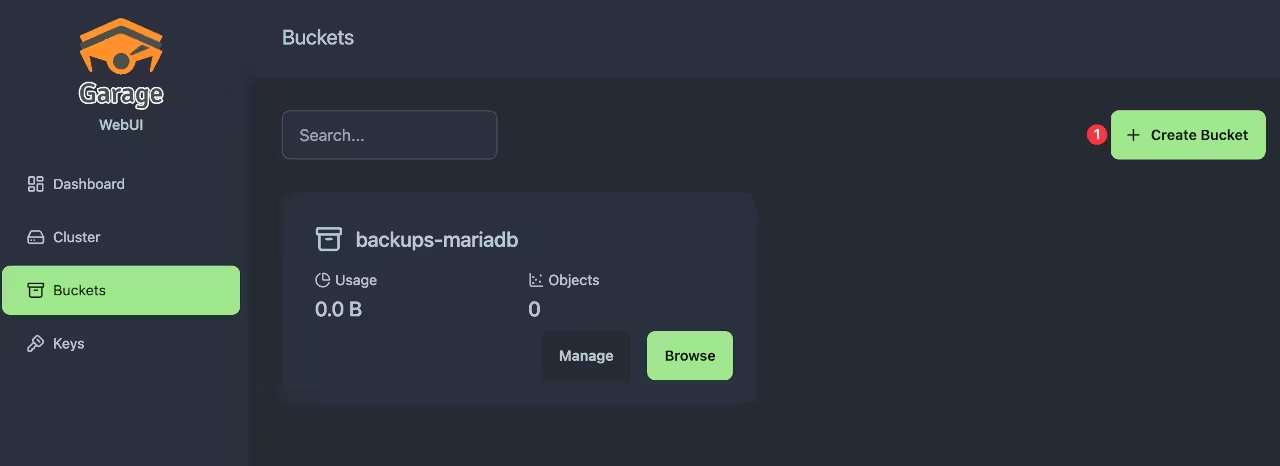
Now go into the "Buckets" tab and click on "Create bucket", then name it:
Create a key
Go into "Keys" tab and click on "Create key", then name it:
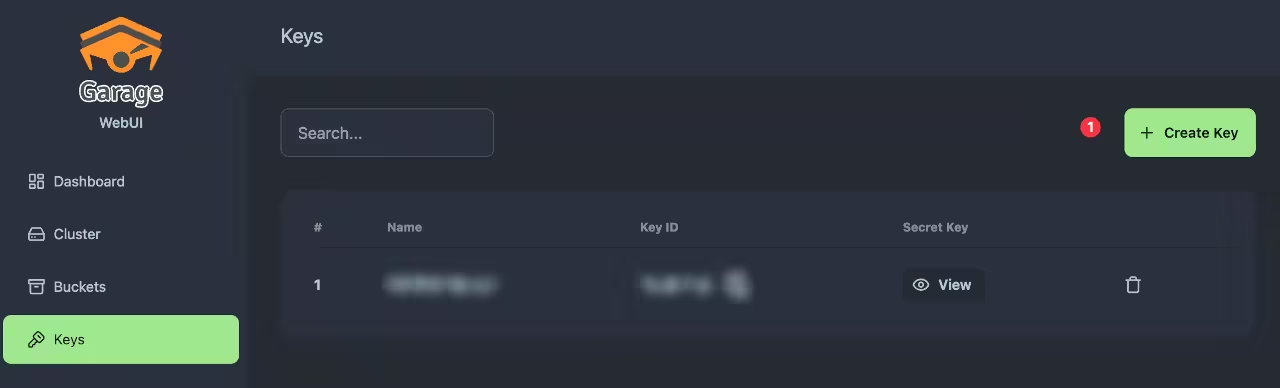
You can then see the Key ID and Secret key.
Manage bucket permissions
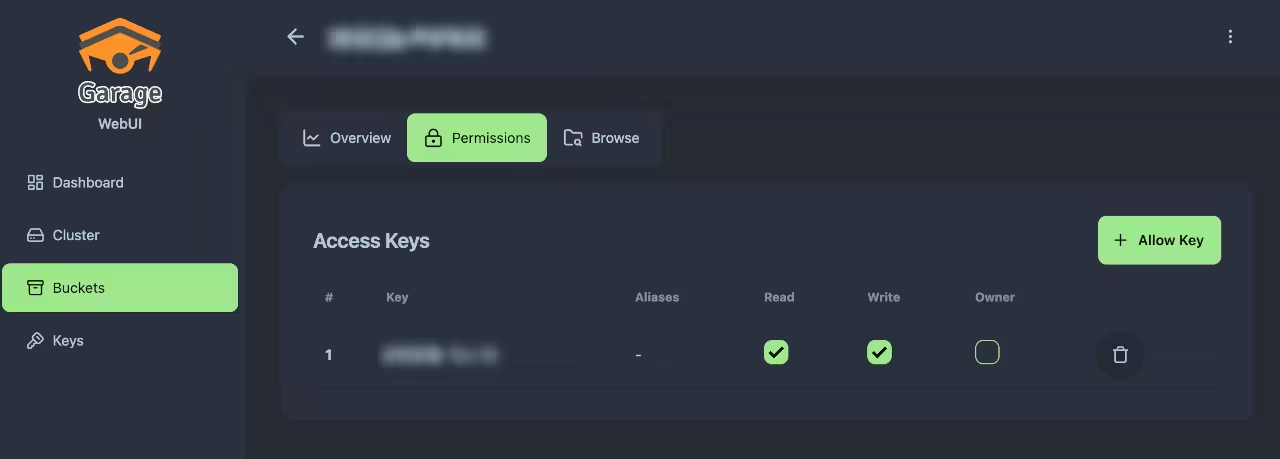
If you click on "Manage" on a bucket, you'll be able to set quotas, website access and permissions. Click on the "Permissions" tab and "Allow key". Then add the permissions you wish and click on "Submit".
API exposure
To be able to use the API inside the cluster, you first need to decide how you want to expose it:
To access the API from inside the cluster, you can use the service name garage and the port 3900. In case you need to access from another namespace, the internal FQDN is:
garage.<namespace>.svcorgarage.<namespace>.svc.cluster.local
A simple solution is to update the service part in the values.yaml file of the garage chart and change the service type:
Then you'll have a LoadBalancer IP assigned to the service. You can use it to access the API from outside the cluster.
You can use Gateway API to expose the API. Useful if you want to expose it publicly:
And finally ensure you have the correct listener properly set on your Gateway:
CLI usage
You can easily use AWS CLI to interact with Garage. First, you need to set the environment variables:
AWS_DEFAULT_REGION: set to the region set in the garage config.AWS_ENDPOINT_URL: use the one from the API exposure method you've chosen.
Then you can use the AWS CLI to interact with Garage. For example, to list all buckets (with recent AWS CLI, --endpoint-url is required):
If you want to have more examples, you can look at the official documentation.
Troubleshooting
Garage S3 Metadata Recovery (LMDB Corruption)
Here is how to recover a Garage node from metadata database corruption (e.g., LMDB: MDB_CORRUPTED) while preserving the node's unique ID/keys in a replicated Garage cluster. I had to do it for my Docker registry pointing to Garage.
Symptoms
You may see errors in your client applications (like a Docker registry or log collectors) such as:
503 Service Unavailableunknown: blob upload unknown to registry(due to interrupted multi-part uploads)
When checking the Docker Registry or Garage logs, you will see the following error indicating a database page corruption on one of the nodes:
Note: In the example above, ef427134c5a3bc85 corresponds to node garage-1.
Recovery Procedure
Step 1: Scale Down the StatefulSet
To release the Persistent Volume Claim (PVC) of the corrupted node so we can mount it to a recovery pod, scale down the Garage StatefulSet to 1 replica:
Verify that the corrupted pod (e.g., garage-1) has terminated:
Step 2: Spin Up a Recovery Helper Pod
Create a helper pod manifest (garage-recovery.yaml) that mounts the metadata PVC of the corrupted node (meta-garage-1):
Apply the manifest:
Wait until the helper pod is running:
Step 3: Remove the Corrupted Database
Exec into the helper pod to view the metadata folder.
Warning
Do NOT wipe the entire folder. You must preserve the node_key and node_key.pub files to prevent the node from generating a new cryptographic identity (which would break cluster layouts). Only delete the database folder.
Delete only the db.lmdb directory:
Step 4: Scale Up Garage
Delete the recovery helper pod:
Scale the Garage StatefulSet back to its original replica count:
Step 5: Trigger Metadata Resync
Since the database on the restored node is now empty, it will report 403 Forbidden errors for S3 keys until it receives the database tables.
Trigger a repair run from the healthy node (garage-0) to push the synchronized tables and blocks to the restored node:
Step 6: Verify Cluster Health
Verify that the restored node has successfully joined as a healthy member:
You should see both nodes listed under ==== HEALTHY NODES ====: